Import or Export your Settings and save them as backup, or share them with your friends.
Steps to Export & Import your Jurojin Settings:
Follow this simple guide on how to use our backup system
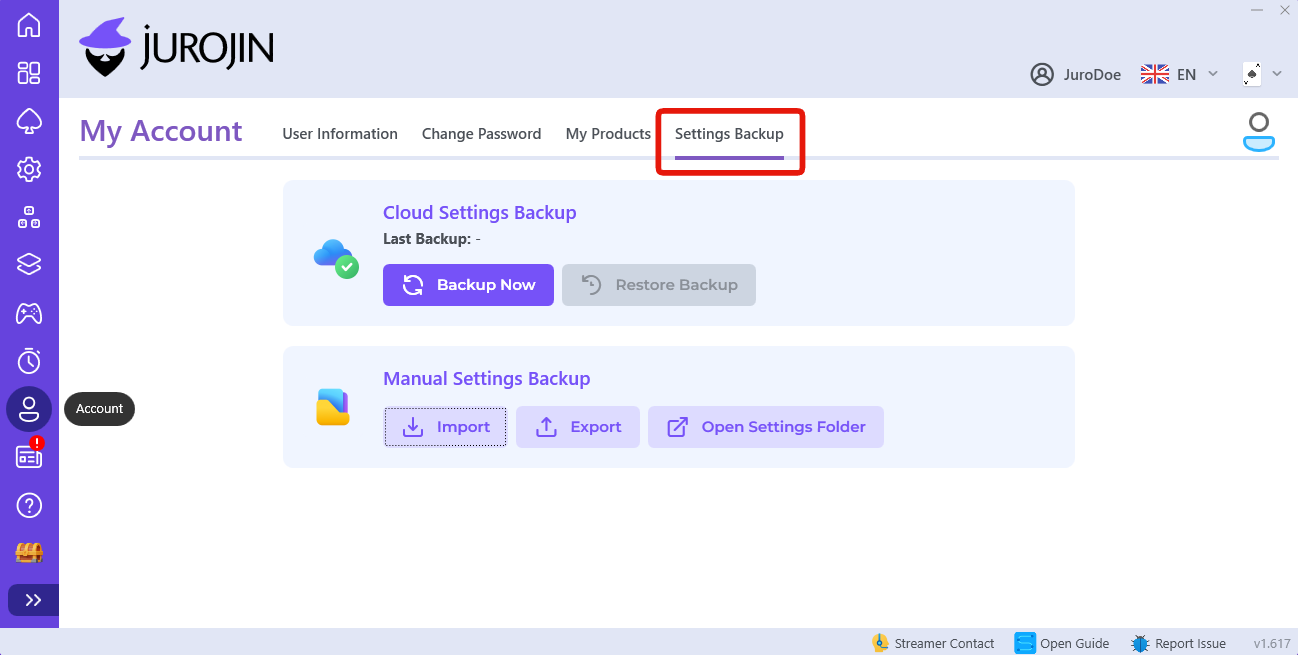
1 Export your Current Settings
The first step to a quick setup is to backup your previous configs so you can later restore them on the new setup! Simply click the Export button to save your settings as a .zip file.
2 Import the Previously Exported Settings
Once you got your .zip on the new PC it's time to import it! Click the Import button and select your previously exported .zip file.
3 Restart Jurojin
For all the settings to take effect, please close and reopen Jurojin now
Cloud Backup
As an extra layer of protection, you can now sync your settings to the cloud! This allows you to keep a backup online that you can restore anytime, anywhere.
To save your settings to the cloud, click the "Save to Cloud" button. When you need to restore them, simply click "Restore from Cloud" and your settings will be downloaded and applied.
Note: Cloud backups must be manually triggered - they don't sync automatically. Make sure to save to the cloud whenever you make important changes to your settings!
Important Note About Layouts Export
Please bear in mind that importing your settings from another PC will also import its layouts! If your new PC has a different monitor/display configuration, you will have to re arrage your layouts accordingly.