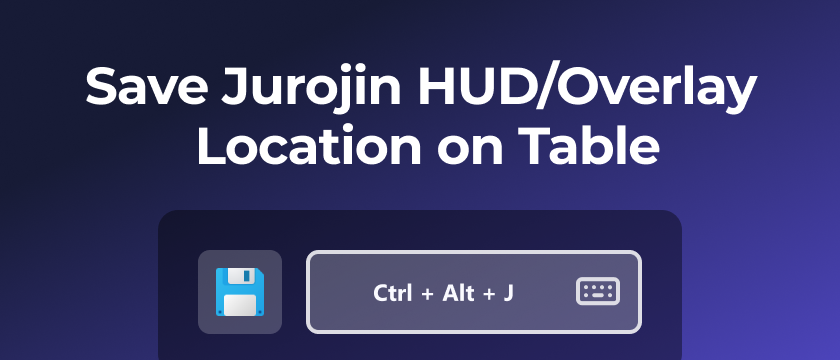
Jurojin HUDs can be moved anywhere inside the table that contains them. In this guide we show how to move overlays and have their position sync and save automatically across your tables.
If you want to learn more about all the different HUD utilities that you can find in Jurojin, visit out Overlays Quick Tour article
How to Move HUDs in the Table
To move any overlay, you have to pick it up from the dotted line that will appear on it's side. Note that you might need to hover it for the dots to appear.
Save HUDs Location for Future Tables
When you release an overlay after dragging it, Jurojin replicates its position on your other open tables and saves the location so new tables use the same layout. No extra step is required.
Steps to Position Overlays
- Move overlays where you want them on any table.
- Release the overlay — other open tables will match the same positions right away.
- Open a new table later and the overlays will appear where you left them.
Move overlays without saving
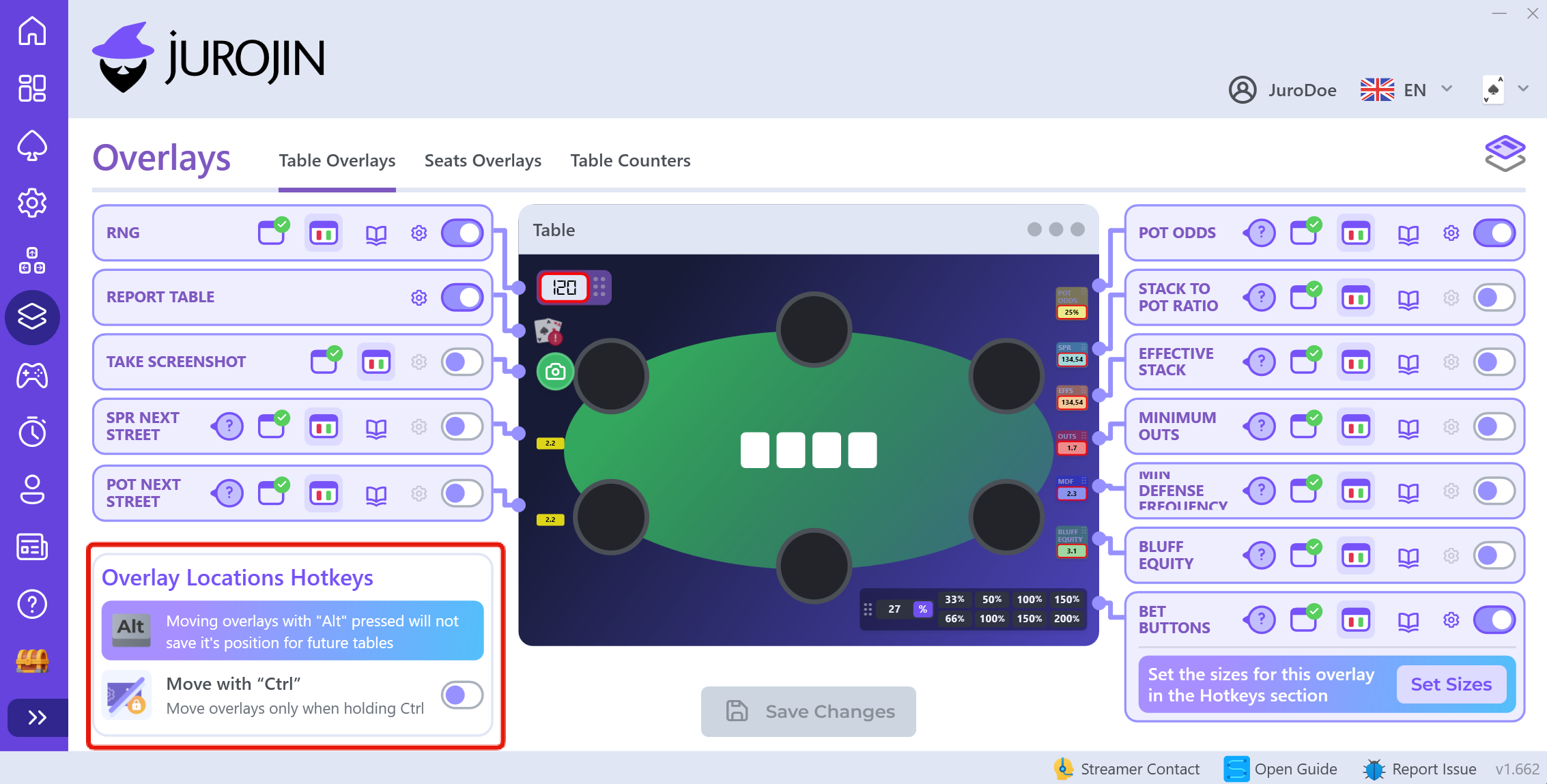
To reposition an overlay on the current table only — without syncing to other tables or saving for future ones — hold Alt while you drag and release it.
You can review this behavior in Overlays → Table Overlays, under Overlay Locations Hotkeys:
How to Reset HUDs to Default
If you want to send an overlay back to its original spot, go to the Overlays view, click the cogwheel of the overlay you want to reset and press Reset Position to Default.
👉Seat Overlays like Actions Line or Seat Positions's location are stored per Ring-Type. It means you need to position overlays on 6max, 9max and so on separately.
👉Every Overlay Location is stored per Poker Site, so you need to adjust positions on each of your Casinos.